
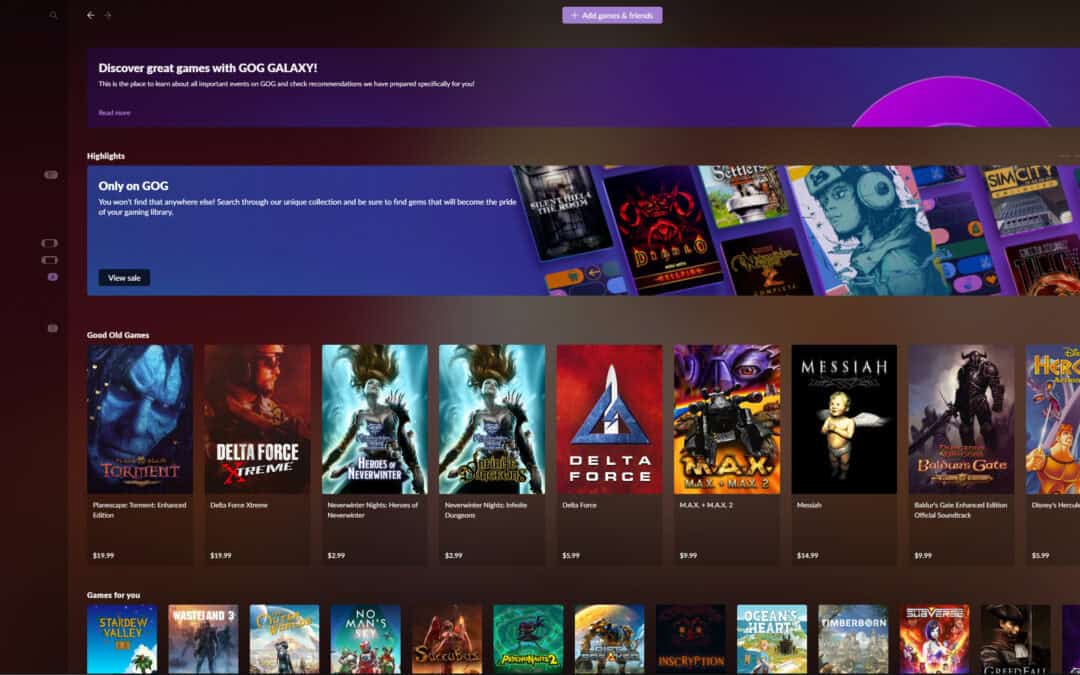
If you've tried to move your default GOG game installation folder or simply upgraded your gaming drive, you may run into a game installation failed error in GOG Galaxy. This occurs when Galaxy tries to validate the game after selecting the Scan folders for GOG Games option.
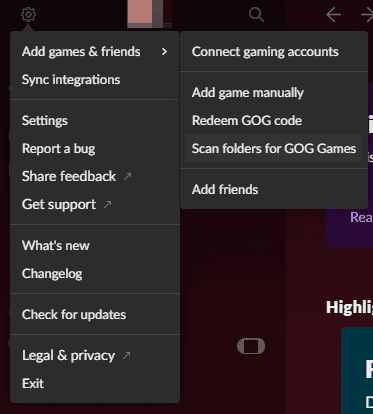
Table of Contents
What Is GOG Galaxy?
GOG Galaxy is an innovative game installation client that lets gamers easily and quickly access, manage, and update their entire game collection. It can also integrate with different gaming platforms, offering a one-stop front end for your game collection.
Fixing Game Installation Failed When Trying to Update or Verify GOG Games
First, you need to close GOG Galaxy and restart your computer. This can fix many installation errors. GOG Galaxy is still in beta and still needs a few optimizations and fixes (yes, even after all these years).
After your computer reboots, sign in and launch GOG Galaxy.
Then, select the game and go to Options (next to the Play button) > Manage Installation > Verify/Repair.
Note: The Play button will probably be grayed out since the game cannot launch.
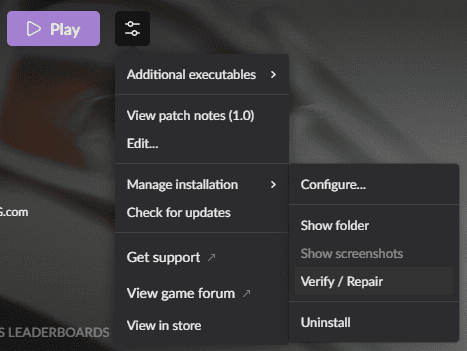
This will fix the problem for some people, and the game will update successfully.
Deleting the GOG Galaxy Database File
If you still get the same error, there may be a database problem. The next step is to perform the following:
- Close GOG Galaxy completely (not minimized or in your system tray).
- Then, open the Run dialog box with the Windows key + R keyboard shortcut.
- Paste C:\ProgramData\GOG.com\Galaxy\Storage, and then press Enter on your keyboard.
- Select the galaxy-2.0.db file in that folder (it will be the largest file).
- Press the Delete key on your keyboard to delete the file.
After this, you can relaunch GOG Galaxy, and your database will be reset. Your game client will sync the information from your GOG account to populate your games, game details, and thumbnails. A new database file will be created automatically.
This will fix the problem for others, and the problematic game will update successfully.
Uninstalling and Reinstalling GOG Galaxy
For those who still have the error and can't update your game(s), you will need to uninstall and reinstall GOG Galaxy. Continue the process by doing the following:
- Open the Run dialog box with the Windows key + R keyboard shortcut.
- Paste C:\Program Files (x86)\GOG Galaxy, and press Enter on your keyboard. If you have GOG Galaxy installed somewhere else, go to that installation folder.
- Run unins000.exe to start the uninstallation process.
- After GOG Galaxy is uninstalled, files will be left over in C:\Program Files (x86)\GOG Galaxy. Delete the GOG Galaxy folder in C:\Program Files (x86).
- Navigate to or paste this path into a run dialog box - C:\ProgramData. Delete the GOG.com folder in ProgramData.
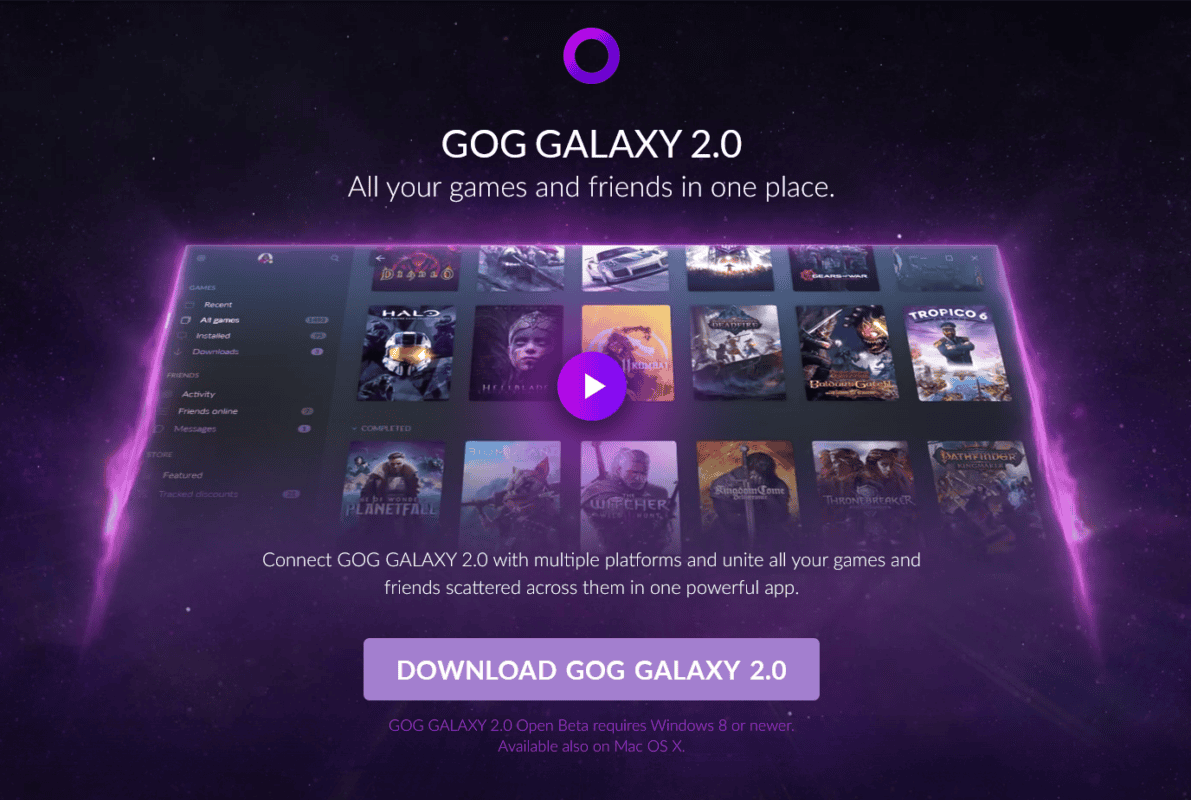
- And finally, download and install the latest version of GOG Galaxy from the GOG website.
Other Update Error Codes
Now, you should be good to go. This fixed the issue for me.
However, if you are still having problems and getting an error code, check out the GOG GALAXY Error Codes help article on GOG for ideas on what to do next. You may have additional issues outside of bad config, db, or game files.


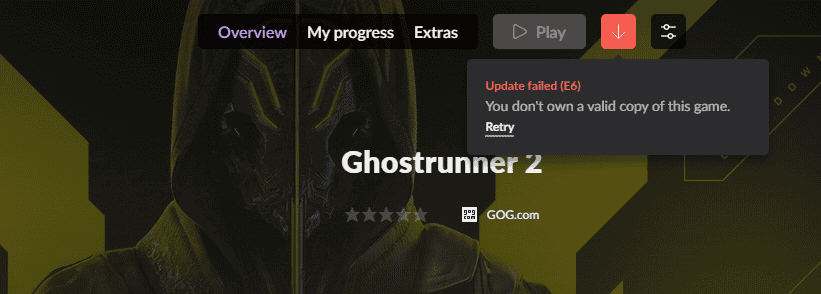
Another common Update Failed error is E6, which is a licensing error. This happened with a preordered game like Ghostrunner 2. To do this, you would have to uninstall and reinstall the game. This hurts when the game is nearly 50GB, as this one is.
Conclusion
If you need additional assistance, check out the Installation Issues help article on GOG for all other installation errors.
When in doubt, reach out to their support. They are excellent and very responsive!
I hope this helps you get back to your game!